

Introduction
Creativity has always been at the heart of teaching. We’re not talking just about art projects or creative writing (though those are equally important), but also about the creative work of instructional design. Every time you differentiate instruction, redesign a lesson, or brainstorm how to engage a reluctant learner, you’re being creative. You create the spaces that allow students to harness their own creativity, supporting their ideas, their iterations, and their refinement.
Currently, many tools with integrated artificial intelligence are available for educators to enhance the creative process. Now more than ever, it’s critical to ask questions about AI, such as: When does AI enhance your creativity versus replace it? And how do you maintain your unique voice and vision when you use AI? For decades, Apple has supported educators’ creativity, providing tools that empower teachers to design, produce, organize, and refine their ideas. Apple Intelligence continues this tradition with new AI capabilities for organizing, visualizing, and iterating on your work.
At Common Sense Media, we believe decisions about technology integration are most effective
when they start with your values and expertise. This guide helps you evaluate when and how Apple Intelligence can support your creative work. If you engaged with our previous Teachers’ Essential Guide to AI Fundamentals with Apple, you explored how to evaluate AI tools through your educational values. We build on that foundation here, focusing specifically on creativity in instructional design and how to let AI amplify your creative vision without outsourcing your professional judgment.
Throughout this guide, you’ll explore hands-on scenarios using the Stanford d.school Design Thinking Framework. While we know creativity doesn’t always unfold through a clear or linear process, this framework offers a helpful lens for examining some of the many ways creative thinking can take shape. It emphasizes iteration, empathy, and experimentation — values that align well with how creativity actually unfolds in classrooms. You’ll work through real classroom scenarios to see where AI-powered tools, including Apple features like Writing Tools, Image Playground, Image Wand, and Audio Transcription, can support different phases of your creative work while you remain firmly in the driver’s seat.
Think Like a Designer
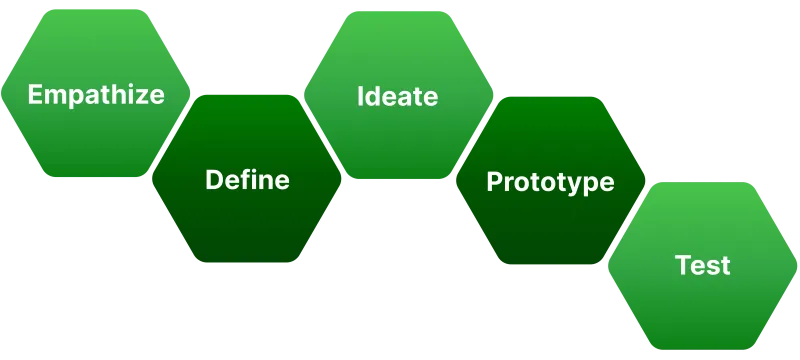
The Design Thinking approach keeps the focus on human experience. In education, that means keeping students and learning at the center. The process moves through five stages: Empathize, Define, Ideate, Prototype, and Test. Let’s explore how Apple Intelligence can support your creativity at each stage.
Companion Workbook: Creativity with Apple Intelligence
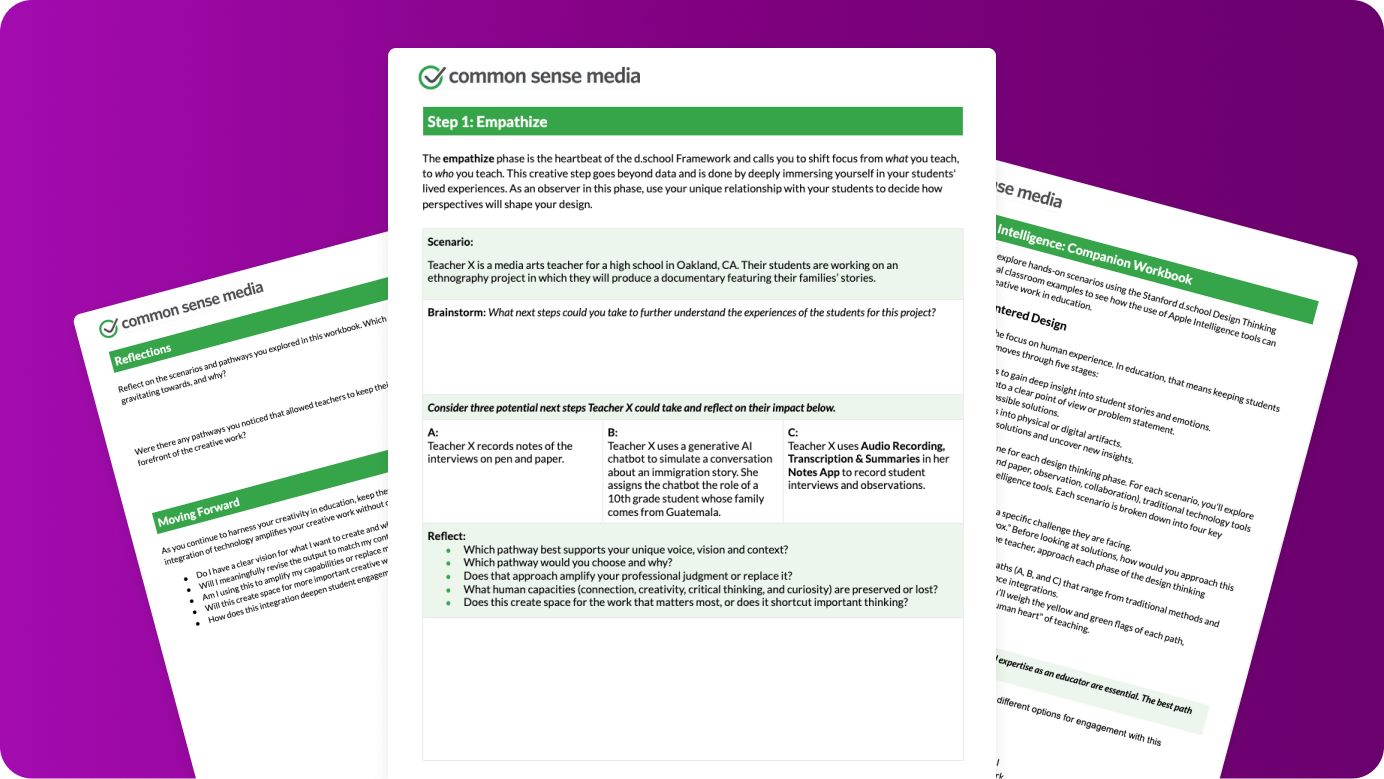
Companion Workbook
The Companion Workbook walks you through five real classroom scenarios — one for each design thinking stage. For each scenario, you’ll explore paths that integrate traditional methods (pen and paper, observation, collaboration), technology tools that support collaboration, and newer Apple Intelligence tools.
Using the workbook
- Solo: Work through scenarios as thought experiments.
- With colleagues: Discuss trade-offs with your team.
- With students: Share adapted versions to explore creativity and AI.
- Revisit later: Reflect on how using Apple Intelligence has impacted your creative process.
Empathize
The creative work: You develop a deep understanding of your students’ experiences, needs, and challenges.
Your creative role: You observe your students and, through the lens of your relationship with them, prioritize their perspective and lived experiences so you can make the learning most meaningful for their specific needs.
How Apple Intelligence can help:
- Use Audio Recording & Transcription in Notes to capture student interviews or observations, freeing you to focus on listening rather than note-taking.
- Use the List or Table features in Writing Tools to organize your observations.
Example: A high school teacher has their students use Audio Recording, with their permission, to capture family conversations during an ethnography project, allowing students to focus fully on interviewing family members about their family stories.
Try it yourself: Explore the Empathize scenario with Teacher X, a media arts teacher whose students are creating documentary interviews (Companion Workbook, page 2).
Define
The creative work: You synthesize observations into a clear problem statement that guides your design work.
Your creative role: You determine what patterns are meaningful, what problems are worth solving, and how to frame challenges.
How Apple Intelligence can help:
- Use Notes to combine multiple observations. Then use Key Points to identify common trends across them.
Example: A first-grade teacher uses Writing Tools to process their weekly literacy group observations, identifying patterns to inform targeted instruction.
Try it yourself: The workbook’s Define scenario follows Teacher X as they synthesize literacy observations to plan differentiated instruction (Companion Workbook, page 3).
Ideate
The creative work: You generate lots of possible solutions, brainstorm without judgment, and step beyond the obvious.
Your creative role: You evaluate which ideas have potential for your context, build on suggestions with your own creativity, and choose which directions to pursue.
How Apple Intelligence can help:
- Use Image Wand to create compelling visual elements when sketching in Notes.
- Use Image Playground to quickly generate visual concepts as a part of brainstorming.
- Use Writing Tools like Describe Your Change to generate and reframe ideas in multiple ways.
Example: An elementary teacher brainstorms creative solutions to the problem of low attendance rates, then uses Image Playground to visualize different incentive ideas before launching Mystery Monday, where a student in attendance is selected for a mystery prize each week.
Try it yourself: The Ideate scenario in the workbook explores Teacher X’s creative brainstorming process (Companion Workbook, page 4).
Prototype
The creative work: You turn abstract ideas into concrete resources that you and your students can interact with.
Your creative role: You revise and adapt prototypes to match your vision, add specificity for your students, and decide when the prototypes are ready to use.
How Apple Intelligence can help:
- Use Image Wand in Notes to transform rough sketches into polished illustrations.
- Use Image Playground to create mock-ups and sample visual content.
- Use Writing Tools features like Professional or Describe Your Change to iterate on tone and clarity.
Example: A special education teacher wants to create a short social story for one of their students. They use Image Wand to turn their quick sketch of the student’s favorite animal eating the daily snack into a visual aid.
Try it yourself: Explore the Prototype scenario with Teacher X as they turn their sketch into a picture (Companion Workbook, page 5).
Test
The creative work: You get feedback, learn what works, and refine your approach.
Your creative role: You interpret feedback through your understanding of students, decide what changes to make, and exercise judgment about when to persist or pivot.
How Apple Intelligence and other ML features can help:
- Use Writing Tools to synthesize professional development notes into themes and action items.
- Use Math Notes to calculate data and graph equations.
Example: A seventh-grade math teacher uses Math Notes to create math problems and graphs that help reinforce concepts for their students.
Try it yourself: The Test scenario follows Teacher X as they reflect on student performance to improve their teaching (Companion Workbook, page 6).
No matter which phase you’re in, you remain the decision-maker. The key question to keep asking is: “Should AI be part of my design process for this work? If so, where?”
Where You Show Up as a Creative Leader
The Design Thinking Framework provides structure, but your creativity brings it to life. You show up as a creative leader through:
- Voice: Your unique way of explaining, encouraging, and connecting. Apple Intelligence can help you draft or organize, but your voice is what builds trust and relationships.
- Vision: You define where students are going and why. Apple Intelligence can help you get there, but the destination is yours.
- Context: You know your classroom’s energy, individual students’ needs, and community values. Like all AI systems, Apple Intelligence can’t have this context on its own, and adding context is part of what you bring to using AI in schools.
Key considerations: Looms vs. Cranes
In our first guide, we distinguished between loom technologies (which replace skills) and crane technologies (which amplify capabilities). This distinction matters for creativity.
The loom (replacement): When you ask AI to write a complete lesson plan from scratch or create assessments without your expertise shaping them, the tool replaces your thinking. This might save time but loses creative judgment.
The crane (augmentation): When you use Image Wand to visualize your sketch, Writing Tools to refine your draft, or Audio Transcription to focus on students instead of note-taking, the tool amplifies your capabilities. You’re still doing the creative work.
Aim to use Apple Intelligence and other technology as a crane. Here’s how:
Assistant, not author
- Yellow light: You accept AI output without meaningful revision.
- Green light: You start with clear intent, use tools to explore, then shape output to match your vision.
Vision-first design
- Yellow light: You ask “What should I teach?” instead of “How can I accomplish my goal?”
- Green light: You know what you want and use tools to get there better or faster.
Intentional integration
- Yellow light: You use AI primarily to save time on important work.
- Green light: You use AI to create space for human connection and deeper teaching work
Quick Self-Check
Before using Apple Intelligence on a project, ask:
- Do I have a clear vision for what I want to create, and why?
- Will I meaningfully revise the output to match my context?
- Am I using this to amplify my capabilities or replace my thinking?
- Will this create space for more important creative work?
If you answer “no” or “I’m not sure” to these questions, you might want to pause and clarify your creative direction first.
Reflections
Reflect on the scenarios and pathways you explored in the workbook. Which pathways did you find yourself gravitating toward, and why? Were there any pathways you noticed that allowed teachers to keep their voice, vision, and context at the forefront of the creative work?
Moving Forward and Looking Ahead
As you continue to harness your creativity in education, keep these key considerations in mind to ensure that your integration of technology amplifies your creative work without outsourcing your professional judgment:
- Do I have a clear vision for what I want to create, and why?
- Will I meaningfully revise the output to match my context?
- Am I using this to amplify my capabilities or replace my thinking?
- Will this create space for more important creative work?
You don’t need to use AI for instructional design. Many educators create brilliant learning experiences without it. But if you choose to experiment with Apple Intelligence, start with your values and expertise. Ask yourself:
- Does this amplify my vision or generate one for me?
- Am I using tools as a crane or a loom?
- Would students be better served by this approach?
- Do I still feel creatively connected to the output?
Your values remain your North Star. Your expertise is irreplaceable. Your creativity — the particular way you design learning for your particular students — is entirely yours.
The goal isn’t to use AI for its own sake. It’s to enhance learning and support your teaching. Apple Intelligence should amplify your capabilities as a creative professional, not diminish your role as the expert designer of your students’ learning experiences.
In the age of artificial intelligence, your human creativity might be more valuable than ever before.
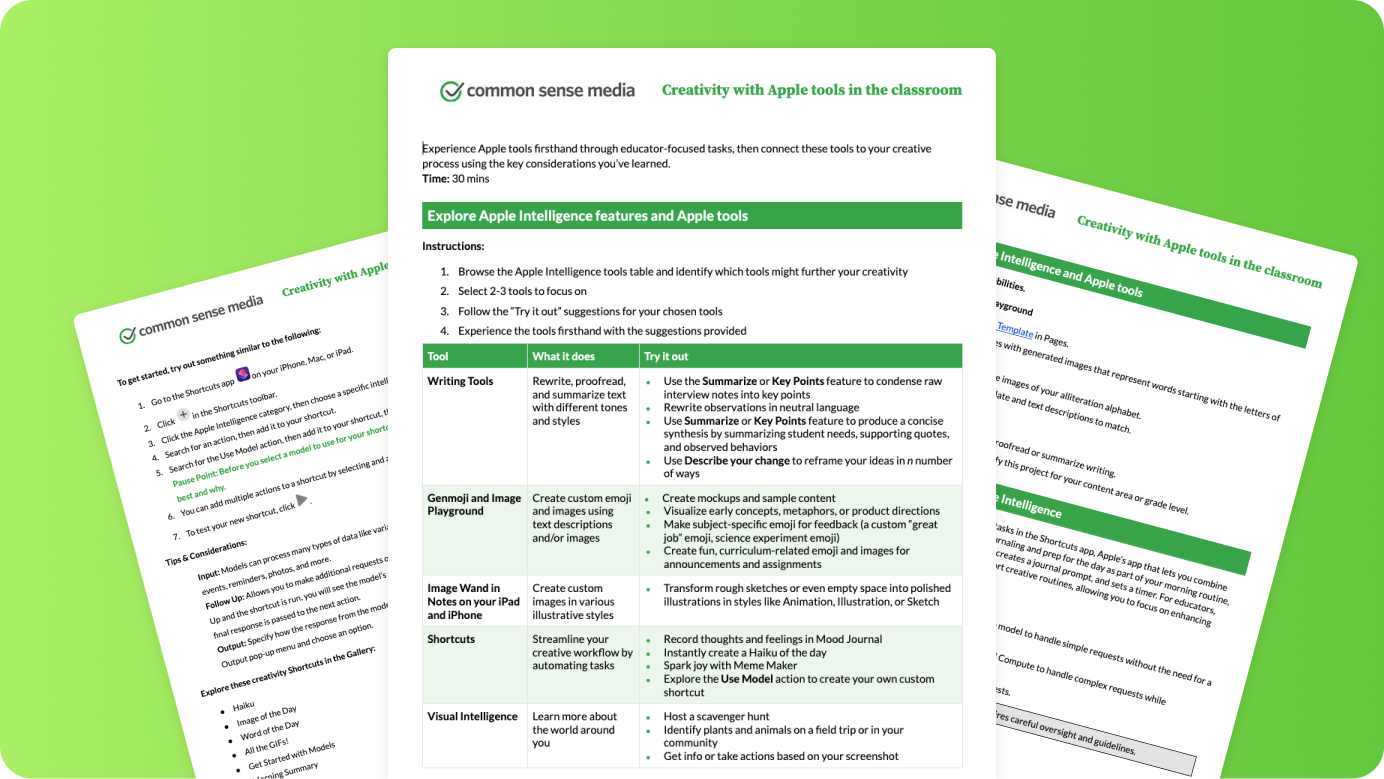
Activity: Creativity with Apple Tools in the Classroom
Learn More
To learn more about Apple in Education, visit Apple’s Community Education Initiative.
For more teacher resources and support, visit the Apple Education Community.
Learn more about Common Sense Media AI PD for Educators.
Learn more about Common Sense Media’s Digital Literacy & Well-Being Curriculum.